Meeting Room AV Support in Hong Kong: How to Keep Every Room Working
A guide to meeting room AV support in Hong Kong, told through an illustrative composite office, not a named client, with ten rooms and a boardroom that fails before board calls. It covers the five boring causes of failure, standardising, remote monitoring, pre-meeting checks, onsite response and who should own the rooms.

TL;DR: Meeting room AV support in Hong Kong is mostly about five boring causes of failure: stale firmware, expired sign-ins, bad cables, a different platform in every room, and no owner. This guide follows an illustrative Hong Kong office through each cause, then covers standardising, remote monitoring, a pre-meeting boardroom check, onsite response, and who should own the rooms.
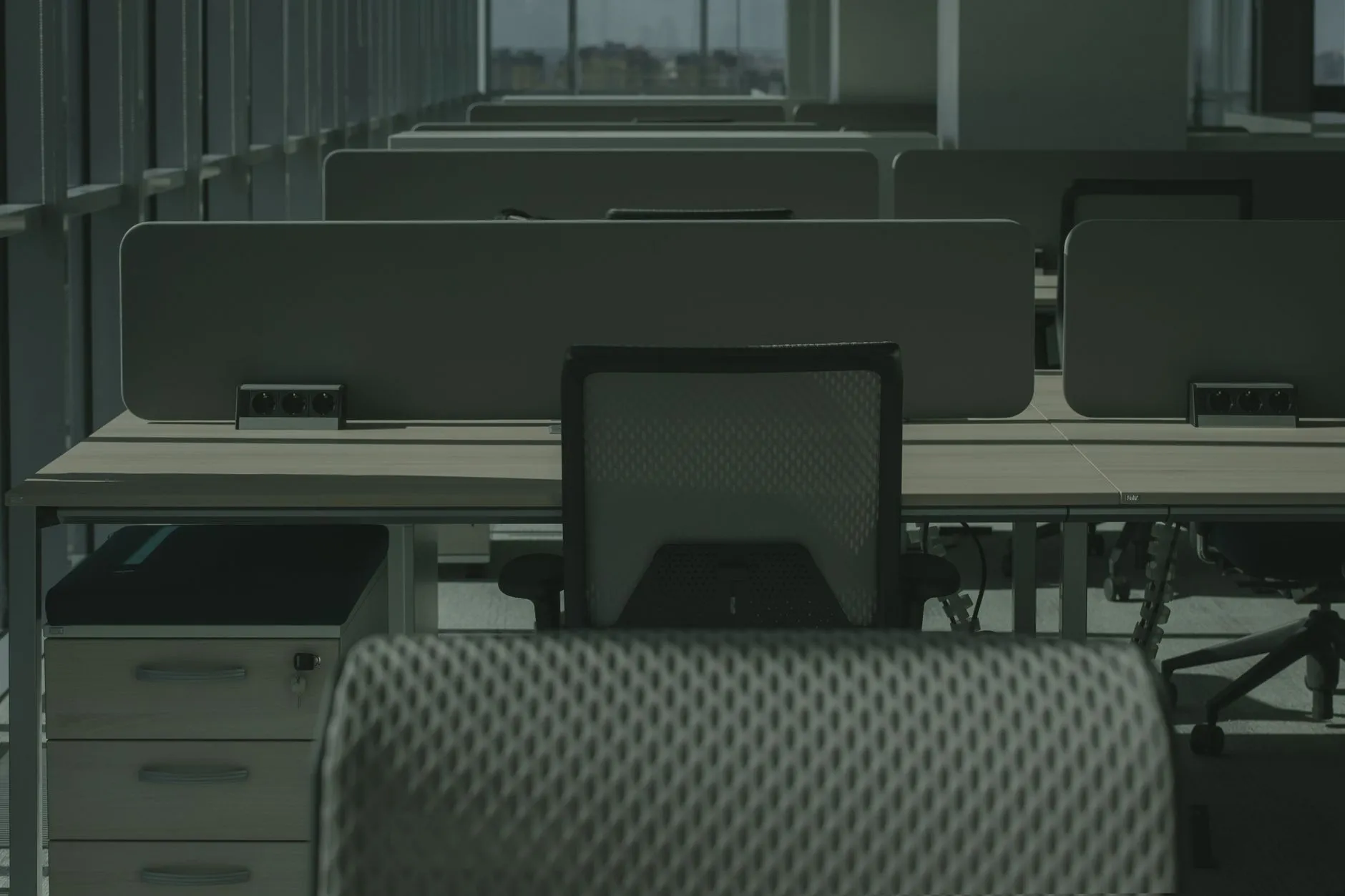
It is 8:40 on a Thursday morning in an Island East office, and the quarterly board call starts at 9:00. The chair is dialling in from another city. The boardroom screen shows the platform's sign-in prompt instead of the meeting, the touch panel on the table says the room account needs attention, and the camera light is off. The CEO's assistant walks to reception and asks the receptionist, who is not an IT person, whether she can "just sort out the video thing".
This is a story, and the office in it is an illustrative composite, not a named client. It is built from the pattern we see when an international group's Hong Kong arm grows through several fit-outs and nobody is asked to look after the rooms afterwards. The numbers in the scenario are the scenario's own. They are not market statistics.
In this illustrative office there are about 70 staff and 10 meeting rooms, plus the boardroom. The rooms were built across three fit-outs, so there are three generations of hardware and three different video platforms. The regional IT lead sits in another country, is responsible for several offices, and sees the Hong Kong rooms only when somebody raises an email. The receptionist has become the de-facto AV support because she is the person who is physically there. Nobody owns the rooms. That sentence explains most of what follows.
This article is about operating and supporting rooms in an existing office, not about designing them. If you are still deciding what to build, the design decisions belong in the fit-out, and the office IT setup service covers audio visual and meeting-room design as part of a fixed-price setup. What we cover here is the long, unglamorous part that starts the day after the contractors leave: keeping every room working for every call, and deciding who is responsible when one does not.
The office and its rooms: who owns them today?
Start by writing down what the illustrative office actually has, because most offices in this position cannot answer the question quickly.
- Rooms one to four — built in the first fit-out. They use a conference-phone style device and a wall display, and sign in to one video platform with a shared room account. The device is older than the current platform version and nobody has checked whether it still receives updates.
- Rooms five to eight — from the second fit-out. They use a different platform's room system, a different camera, and a ceiling microphone. Their calendar integration was set up by an integrator who has not been back.
- Rooms nine and ten — from the third fit-out, when the group standardised on yet another platform for a regional project. They have the newest hardware and a booking panel outside each door.
- The boardroom — extended in the second fit-out and patched in the third. It has the most equipment, the most cables behind the credenza, and the most important calls.
Now ask who owns each room. In the illustrative office the answer is a list of partial answers. The integrator who installed each room owns the design but is not on a retainer. The landlord owns the building network risers. The regional IT lead owns the platform tenant, but not the devices. The office manager owns the budget for "office things", but is not technical. The receptionist owns the moment of failure, because that is when someone walks up to her desk.
That gap, the moment of failure with no one accountable before it, is why the CEO calls the receptionist and the receptionist calls whoever she can reach. It is also why the same room fails again next quarter. When a fix is a one-off scramble, nothing is recorded, nothing is changed, and nobody learns that the boardroom has failed before three of the last four board calls.
The rest of this guide takes the problem apart in the order you would fix it: understand the causes, standardise what you can, watch what can be watched, check the boardroom before it matters, decide how the onsite response works, look at what sits underneath the rooms, and finally decide who owns all of it.
Why do meeting rooms fail so often?
Rooms rarely fail in dramatic ways. In our experience of supporting offices, the causes are boring, and they repeat. There are five.
1. Firmware and updates that never happen
A room system is a small computer plus a camera, a microphone and a display controller. Each of those has firmware, and the room software on top has its own update cycle. In an office without an owner, nobody schedules any of it. The room works, so nobody touches it.
The trouble shows up in two ways. First, a room that has not been updated drifts away from the platform it connects to. The platform changes its client, the room still runs an old build, and one day a feature such as content sharing or a new sign-in method stops behaving. Second, updates that do finally arrive arrive at the worst moment, because some systems install an update automatically when they next wake up, which can be the morning of the board call.
What to do about it is unglamorous. Know each room's current firmware and room-software version. Decide a window for updates, outside business hours and not in the week of a board meeting. Apply them on purpose, to one room first, and check the room afterwards. Record the result. The key point is that an update is a planned change with a name next to it, not something that happens to the room.
2. A changed room-account password or an expired sign-in
Most room systems sign in to the platform with a dedicated account, a so-called resource or room account. That account has a password or a token, and somebody, somewhere, has a policy that makes it expire, rotate or require a new multi-factor setup. The policy is sensible. The room does not know about it.
So the room signs out silently. Nothing looks broken until the touch panel shows a sign-in prompt, and by then it is 8:40. The fault is not in the room at all. It is a change in the identity system that nobody connected to the room.
The fix is to treat the room account as an asset with an owner and a review date. Know which accounts exist, which room each belongs to, and when the credential next changes. Where the platform allows it, set the room account so it does not expire on a schedule that will surprise you, and document that decision with your security owner. Whatever you choose, make the sign-in state something a person or a monitoring system can see before the meeting, not discover during it.
3. Loose or failing HDMI, USB and cabling
Cables are the most physical failure, and the one that people least want to admit. A cable that carries video from a table box to a display is plugged and unplugged by many hands. A USB camera cable is tugged when a chair rolls over it. An HDMI adaptor is borrowed and not returned. A connector that has been fully seated for two years can be partly seated after a clean.
Symptoms are intermittent: the picture flickers, the camera appears and disappears, content share works only if you wiggle the plug. Intermittent faults are the hardest to support remotely, because by the time somebody looks, the cable has settled and the room works.
The practical response has two parts. At installation, cabling should be properly terminated and tested; the office IT setup service includes structured cabling with Fluke testing, which is the kind of discipline that makes the permanent runs reliable. For the loose ends that remain, which are the table-top leads that people touch, the answer is spares and a routine physical check, not heroics on the day.
4. No standard platform, so every room behaves differently
With three fit-outs and three platforms, every room is a slightly different product. One room joins from a calendar invite with a single tap. Another needs the user to type a meeting ID. A third needs the laptop plugged in and the call started from the laptop. Visitors cannot learn any of this, and employees learn it room by room.
The cost is not just inconvenience. A support person cannot know the right fix without first working out which type of room it is. Documentation multiplies. Training is repeated. A fault in one room tells you nothing about the others, so you cannot spot a pattern.
This is the cause with the biggest long-term payoff, and the next section deals with it directly.
5. Nobody owns the rooms
The fifth cause underlies the other four. If nobody owns the rooms, nobody schedules the firmware, nobody tracks the room accounts, nobody replaces the frayed cable, and nobody argues for standardising. Each cause is cheap to fix and expensive to ignore, and ownership is what turns a list of chores into a routine.
Ownership does not mean one person doing everything. It means that for each room there is a named service that is responsible for the room working, with a way to be told it is not, and a record of what was done. Most of this guide is about what that service looks like and who can provide it.
Should we standardise the platform before buying hardware?
Usually yes, but "standardise" needs defining, especially in a leased Hong Kong office where you cannot rip everything out and start again.
At its simplest, standardising means a single platform for rooms wherever possible, a single room-system vendor family wherever possible, and consistent peripherals so that a spare camera, microphone or remote works in more than one room. Room-system vendors include Poly, Logitech, Yealink, Crestron and Neat, among others, and which family suits you depends on the platform you choose and what your room sizes demand. We name them as examples only. We do not imply any partnership or certification with any of them.
Platform choice is a separate question from vendor choice. Microsoft Teams Rooms, Zoom Rooms and Google Meet hardware are three common routes. The right one is generally the platform your staff already use all day for calendars and chat, because rooms that behave like the rest of the desktop experience get used, and rooms that do not get abandoned. If your firm is split across platforms, the FAQ below deals with that.
What standardising means when you lease and already own mixed hardware
In a leased office, you often cannot change ceilings, walls or trunking, and the landlord's restoration clause may apply to anything you add. Existing hardware has years of life left and a depreciation schedule. So the practical definition of standardising is not "replace all ten rooms". It is a phased programme.
- Fix the platform decision first — Decide, on paper, which platform the office will use. This costs nothing and stops new purchases from adding to the mix.
- Rank the rooms — Put the boardroom and the rooms that clients and investors see first. Rooms used for internal stand-ups come last.
- Convert room by room — When a room's hardware is at the end of its life, or when it fails twice, replace it with the standard. Do not spread the work thin across all ten rooms in one go.
- Keep the old rooms supportable in the meantime — Document each non-standard room's quirks, because for a year or two they will still be in use.
The result after a phased pass is not perfection. It is fewer room types, which means fewer support recipes. In the illustrative office, three platforms and three hardware generations become one platform and two hardware generations, and the next fit-out has a standard to follow.
The platform decision belongs in the build-out, not in the day-to-day run, so we will not argue it at length here. This article assumes the rooms are already there, and that the question is how to keep them working.
Can meeting rooms be monitored remotely like endpoints?
Partly, and the part that can be monitored is worth having. Treat a room as a set of endpoints, then separate what a monitoring system can see from what it cannot.
What can be watched
- The room system's online or offline state — The room-system device reports to its platform. If it is offline at 8:00 and it was online at 17:00, that is an alert before anyone walks in.
- The sign-in state — Most platforms show in an admin portal whether a room account is signed in and healthy. This turns the "expired sign-in" cause from a surprise into an alert.
- Peripheral presence — Many room systems report whether the camera, microphone and display are connected. A camera that has disappeared from the device's list is a camera that will not work, and you can know before the meeting.
- Firmware version — The platform's admin portal usually shows what each room is running. That lets you see which rooms have drifted and plan updates rather than discover them.
- The display or console as a network device — Where a display, a touch controller or a room console supports network monitoring in the SNMP style, it can be watched like any other device on the network.
- The switch port and the access point under the room — A room system depends on the network port it plugs into and the wireless access point that serves guests. Those are ordinary network devices, and device-level monitoring covers them. Brocent's network and hardware maintenance service monitors routers, switches, firewalls, VPNs and wireless access points from a centralised console, with 24×7 NOC monitoring in which an abnormal condition triggers an immediate ticket and a technician investigation.
What cannot be watched
Be honest about the limits, because a monitoring promise that overreaches creates the wrong kind of confidence.
- A loose cable — If the connector is half-seated, the device may report itself as present and the picture may still be wrong.
- Someone unplugging the camera — The system may show the camera missing, which is useful, but it cannot tell you whether the person who unplugged it meant to or where the cable went.
- The physical room — No monitoring tells you that the table was moved, a chair is on the cable, the microphone is facing the wall, or the whiteboard marker has run dry.
So the point of monitoring is not to remove people from the process. It is to remove the surprises that software can see, so that the remaining physical checks are fewer and better targeted.
From alert to ticket
An alert that no one acts on is just noise. The useful chain is: the monitoring system raises an alert, the alert opens a ticket, the ticket is assigned and worked, and the ticket's outcome is recorded against the room. That record is what lets you see, six months later, that the boardroom's camera drops out more than any other and decide to replace it.
For the illustrative office, this means the sign-in state of the boardroom is checked automatically on the evening before the board call. If it has expired, the ticket exists by morning and a technician has re-authenticated the room before anyone arrives. It is a modest change, and it removes one of the five causes entirely for that room.
What does a pre-meeting check look like for the boardroom and investor calls?
Some calls are not allowed to fail. For those, do not rely on the room being fine because it was fine yesterday. Run a short check 30 to 60 minutes before the meeting. It needs to be short enough that it actually happens.
A boardroom pre-meeting checklist, in the order a person would do it:
- Sign-in — The room system shows as signed in and the panel shows today's meeting. If it shows a sign-in prompt, there is still time to fix it.
- Camera — The camera is detected, the picture is on, and the framing covers the seats that will be used.
- Microphone — Speak at the far end of the table and have someone remote, or a test call, confirm they can hear. Check the mute state, because a muted room is the most common "silent" failure.
- Content share — Share from a laptop using the cable or wireless method the room offers. Do it with a laptop the room has not seen before if you can, because that is what a visitor will bring.
- Dial-in — Confirm the dial-in details work for any participant who cannot use the video platform. A phone bridge that has never been tested is a hope, not a plan.
- Spare cable — A spare HDMI lead, a USB-C adaptor and a spare remote are physically in the room, in a known place.
- Display and sound — The screen is at the right input, the volume is not at zero, and no other source has taken over the display.
Who runs it, and how it is logged
The checklist is only useful if a named person runs it and a record exists. In the illustrative office, the receptionist is the obvious candidate for the walk through the room, because she is on site. But she should not be asked to diagnose anything. Her job is to tick the items, and if one fails, to raise a ticket with a short description so a technician can act.
For the checks that can be done from a distance, such as sign-in state and device presence, a remote engineer can do them. For the checks that need a person in the room, such as the cable and the microphone, an onsite person does them. The log should show who checked, when, and what they found. A one-line entry is enough.
The log has a second benefit. When the board asks why a call went badly, the answer is a record, not a recollection. And the pattern across months of records tells you where to invest.
Onsite response: dispatch versus a scheduled walk-round
Sooner or later, something needs a person in the room. There are two ways to provide that, and they suit different problems.
When a dispatch is right
A dispatch is a reactive visit. A fault happens, a ticket is raised, and an engineer comes. It is the right model when the failure is urgent, such as the boardroom failing before a call, and when the fault needs hands, such as replacing a failed touch panel or camera. Brocent's field IT dispatch service works this way: an engineer is dispatched within a 4-hour emergency window for P1 and P2 issues, or the next business day for standard requests, and on-site hardware break-fix explicitly covers AV equipment.
Note what a 4-hour window means in practice. It is a response commitment for an emergency, not a promise that the fault will be fixed in four hours, and it will not save a call that starts in 30 minutes. For that, the pre-meeting check is the tool. Dispatch is for the failure you could not prevent; checks are for the failure you could.
When a scheduled walk-round is cheaper
A walk-round is a preventive visit. An engineer or technician visits the office on a regular schedule, weekly or fortnightly in an office with many rooms, and goes through all rooms: cables seated, cameras framed, firmware versions confirmed, touch panels clean, remotes working, batteries replaced. The same field service offers scheduled monthly or quarterly preventive maintenance visits.
A walk-round is cheaper than dispatches when the same small faults recur across many rooms, because one visit catches ten small problems that would have become ten separate tickets. It is also cheaper than the cost of a failed board call, although that cost is not a number we can quote. The right frequency depends on how heavily the rooms are used and how many there are. An office with 10 rooms and a boardroom might choose a lighter schedule for most rooms and a closer check for the boardroom.
Spares: who holds them
The difference between a five-minute fix and a two-day fix is often whether a spare is within reach. Decide, in advance, what is kept on site and where.
- HDMI and USB-C leads and adaptors — in a labelled drawer in the boardroom and the reception area.
- Remote batteries — and a spare remote for each room type.
- A spare touch panel — for the boardroom's platform, because the panel is the one component whose failure leaves the room unusable even though everything else works.
- A spare camera or microphone — for the boardroom, if the budget allows. If not, know the lead time to replace one.
Who holds the spares matters as much as what they are. If the spares are in a cupboard only the integrator knew about, they do not exist. Name a place, name a person, and check the box at the walk-round. Where a service provider holds in-country spare parts, as Brocent does in Hong Kong, China, Japan and Singapore for the network hardware it maintains, that supports the replacement of network equipment under the room. For AV items specific to your own rooms, keep a small stock on site.
Booking panels, displays and the network under them
A room is not only the camera and the microphone. Around it sit the devices people forget to count.
Booking panels are endpoints
The panel outside a meeting room door is a small tablet-class device, running software, pulling a calendar, and sitting on the network. It can lose its connection, its sign-in, or its power. When the panel shows the wrong state, people walk into occupied rooms or avoid free ones, and they stop trusting the booking system entirely. The panel is an endpoint like any laptop, and it should be on the inventory, in the monitoring and in the update schedule.
If a booking panel is a PoE device, its power comes through the network cable from a switch port. That means a switch reboot, a PoE budget problem or a faulty patch lead takes the panel down with it. When several panels go blank at once, look at the switch before you look at the panels.
PoE and VLAN
Two network decisions matter for rooms. The first is power: confirm that the switch has enough PoE capacity for the panels, cameras and any other powered devices, and that the capacity is reviewed when devices are added. The second is segmentation: room systems and booking panels are best kept on their own VLAN, separate from staff laptops and from guest devices. That reduces the effect of problems on either side and makes the rules for the room devices simpler to write and to audit. The FAQ below returns to this.
Digital signage
Displays outside rooms or in reception that show schedules, announcements or welcome messages are digital signage. They are another set of screens that somebody has to keep updated, powered and on the network. The office IT setup service includes digital signage for boardrooms and meeting rooms as part of audio visual design. After the fit-out, signage needs the same ownership as everything else: a name, a schedule, and a ticket when it goes blank.
The Wi-Fi the room's guests use
Visitors in a meeting room expect to connect to wireless, and a room of guests with laptops and phones makes demands on the nearest access point. If a client's presentation stalls because the access point is congested, the room system is blameless but the call still fails in the client's eyes. The access point serving the room is part of the room's service. Device-level monitoring of wireless access points, quarterly health checks and firmware upgrades, which sit within the network and hardware maintenance service, help to keep that part healthy.
Who should own the rooms? Comparing three models
The question is not whether a room needs support. It is who provides it, what that provider covers, what it misses, and how it is paid for. Here are three common models for an office like our illustrative one.
Comparing AV integrator, internal staff and managed IT
- AV integrator only — Strong on design, hardware selection and complex fixes in the rooms they built. They know the cabling and the control system. The limits are coverage and continuity: unless they hold a retainer, they come when called, often for a fee per visit, they know only their own rooms, and they usually do not watch the network, the sign-in state or the platform tenant. In a three-fit-out office, there may be three integrators, and none of them sees the whole picture. It is paid for as projects or call-outs, and it works best for the initial build and for major changes.
- Internal staff (office manager or receptionist) — Always on site, knows who is who, and can reset a room by turning it off and on or finding a cable. The limits are skills, time and authority. They are not hired or trained for AV, they have a day job, they cannot see the platform admin portal or the network, and when they leave the knowledge leaves with them. It is paid for in hidden time and in stress, and it works for the first minute of a problem, not for the cause.
- Managed IT covering rooms as endpoints — Treats each room system, panel, display and the network port under it as devices to monitor, patch and support, with a service desk to take the call and engineers to dispatch. It covers the recurring causes: updates, sign-ins, monitoring and ticketing, and a named service that answers for the rooms. The limit is that it depends on the room hardware being supportable, so very old or unusual equipment may need replacing first, and design of new rooms is still a project. It is paid for as a recurring service, with project work such as new rooms quoted separately.
These are not mutually exclusive. A sensible arrangement keeps the integrator for design and major work, keeps the receptionist for the first-minute reset and the pre-meeting walk through the room, and puts the ongoing monitoring, patching and escalation on a managed IT service. What matters is that every item on the list of five causes has a named owner.
The rooms are endpoints, and the plan already manages endpoints
Look at what the five causes need: someone to schedule updates, someone to watch sign-in and device state, someone to raise a ticket and send an engineer, someone to answer the phone when the board call fails, and someone to keep the record. Those are not special AV skills. They are the standard activities of a managed IT service: monitoring, patching, dispatch and a help desk.
That is why, for an office of this size, it makes sense to bring the rooms under the same managed IT service that already looks after your laptops, your network and your accounts, instead of signing a separate AV contract: one ticket queue and one 24×7 help desk for all of it. On Brocent's help desk, 90% of calls are answered within 40 seconds, in Mandarin, Cantonese and English, which matters when the person calling is a receptionist at 8:40 with the board chair waiting on the line.
After a setup, Brocent's office IT setup service continues with on-demand and preventive support, including the 24×7 help desk, which is how the rooms we help to build stay supported afterwards. Brocent was founded in 2007, has been headquartered in Singapore since 2021, and has had a permanent engineering office in Hong Kong since 2016, so the engineers who come on site work in the same city as the rooms.
If you want to see how the rooms would sit inside a plan, start with the per-user managed IT plan. Every plan includes 24/7 NOC monitoring, the help desk and patch management; how your room systems, panels and displays are brought into that coverage is scoped against the rooms and hardware in your office. For the commercial side, see pricing; Brocent publishes no AV price list, so room work is scoped by fixed-price quotation. To talk through your own rooms, contact us with the number of rooms, the platforms and the hardware you have.
Frequently asked questions
Should we pick Microsoft Teams Rooms or Zoom Rooms?
Pick the platform your people already use for calendars, chat and everyday calls, because a room that feels like the rest of the desktop gets used. Microsoft Teams Rooms, Zoom Rooms and Google Meet hardware are all workable routes. What goes wrong is not the choice itself but the mix. A single platform with a consistent set of room-system hardware is easier to support than the "best" platform in some rooms and a different one in others. If you must choose today, choose the one that matches your identity and calendar system, then standardise room by room.
Can meeting rooms be monitored remotely?
Yes, partly. Room-system online or offline state, sign-in state, peripheral presence and firmware version can be seen through the platform's admin portal, and the network port and access point under the room can be monitored like any other network device. A loose cable, an unplugged camera or the physical state of the room cannot be seen remotely. So monitoring removes the surprises that software can detect and leaves a smaller list of physical checks. The alert should open a ticket so that someone is assigned and the outcome is recorded.
Who fixes it during a board meeting?
It depends on what you arranged before the meeting. The best case is that nobody has to, because a check 30 to 60 minutes earlier found the problem. If a fault does appear during the call, the first responder is the person on site with the checklist and a spare cable, who can raise a ticket with the 24×7 help desk. If the fault needs hands, an engineer can be dispatched within a 4-hour emergency window, but that will not rescue a call that is already running. For calls that cannot fail, plan for the check and the spare, not for the dispatch.
How often should room firmware be updated?
There is no single correct interval, and we will not invent one. A better rule is to know each room's firmware and room-software versions, review them on a regular schedule, and apply updates in a planned window away from important meetings. Scheduled quarterly health checks that include firmware upgrades are one way to build the habit into your support. Update one room first, check it works, then do the rest, and avoid the week of a board call. Record each change so you can link a new fault to a recent update.
Do meeting rooms need their own network segment?
It is good practice to keep room systems and booking panels on a separate VLAN from staff laptops and guest devices. Doing so isolates faults and makes the rules for room devices easier to write and review. It also means that guest Wi-Fi congestion does not interfere with the room system. Whether you need one in your office depends on your network design and your security requirements, and a network review will tell you. Whatever the segmentation, make sure the switch has enough PoE capacity for the powered devices in the rooms.
What does a room refresh cost?
It depends on the number of rooms, the platform you choose and the hardware in each room, and Brocent publishes no AV price list. Instead, room work is scoped as part of a fixed-price quotation for office IT setup, so you see a single figure for a defined scope. The most useful thing you can bring to that conversation is a list of your rooms, what is in each, which platform each uses, and which ones fail most often. The office IT setup service describes how the audio visual and meeting-room work is scoped.
How do we stop the "it worked yesterday" problem?
Most of the time "it worked yesterday" means something changed overnight that nobody linked to the room: a platform update, an expired sign-in, a patched network port, or a cable moved during cleaning. The cure is to see those changes. Monitor sign-in and device state, schedule updates so they are not a surprise, keep a record of tickets per room, and run the pre-meeting check for important calls. When something does change, the record tells you what, and the next occurrence is a routine fix.
Is one platform realistic when clients use another?
Yes, and it is more common than people expect. Standardising your rooms on one platform does not stop you joining a client's meeting on a different one. Many room systems can join other platforms' meetings through a web link or a gateway, with some limits on features that you should test before an important call. The practical approach is to choose your own platform for hosting and for staff, test how your rooms join the main client platforms, and put the results in a one-page guide beside the room panel. For key clients, a pre-meeting check should include joining on their platform.
Share:
Ready to take action?
Turn these insights into a roadmap for your business.
Book a 15-minute no-obligation consultation with our APAC IT experts. We'll review your current setup and provide a tailored IT roadmap within 24 hours.
Explore all servicesFree Checklist
10 Critical Checks Before Expanding IT to Greater China
PIPL compliance, network segmentation, bilingual helpdesk setup, and more — everything your IT team needs before Day 1 in China.
Request the checklist →📬 Monthly Asia IT Insights
China compliance updates, cybersecurity alerts, and IT tips for APAC teams — once a month.
No spam. Unsubscribe anytime.