Guides · Ordering and payment
From choosing a plan on the website to seeing your order in the portal
Follow six steps: pick a plan on the website, sign up in the customer portal, enter your company details, confirm the plan and payment method, then see your order in the portal.
Overview
See the whole route first, then jump to any step
Orange is the website, teal is the customer portal
On a narrow screen, swipe sideways to see all 6 steps
Choose a plan on the website
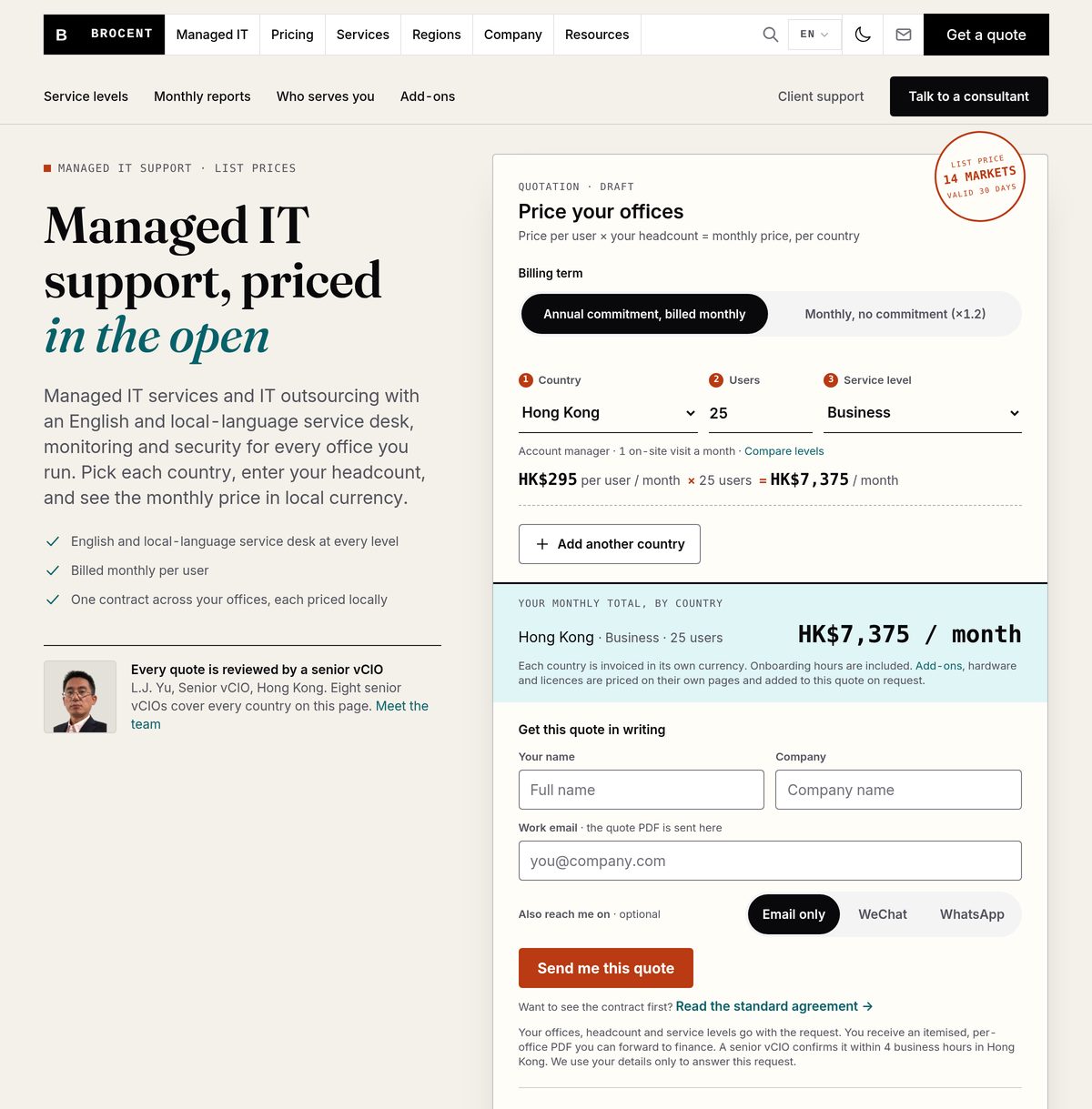
- In the calculator on the home page, pick the country, enter the number of users and choose a service level.
- The monthly fee appears on the right, in local currency.
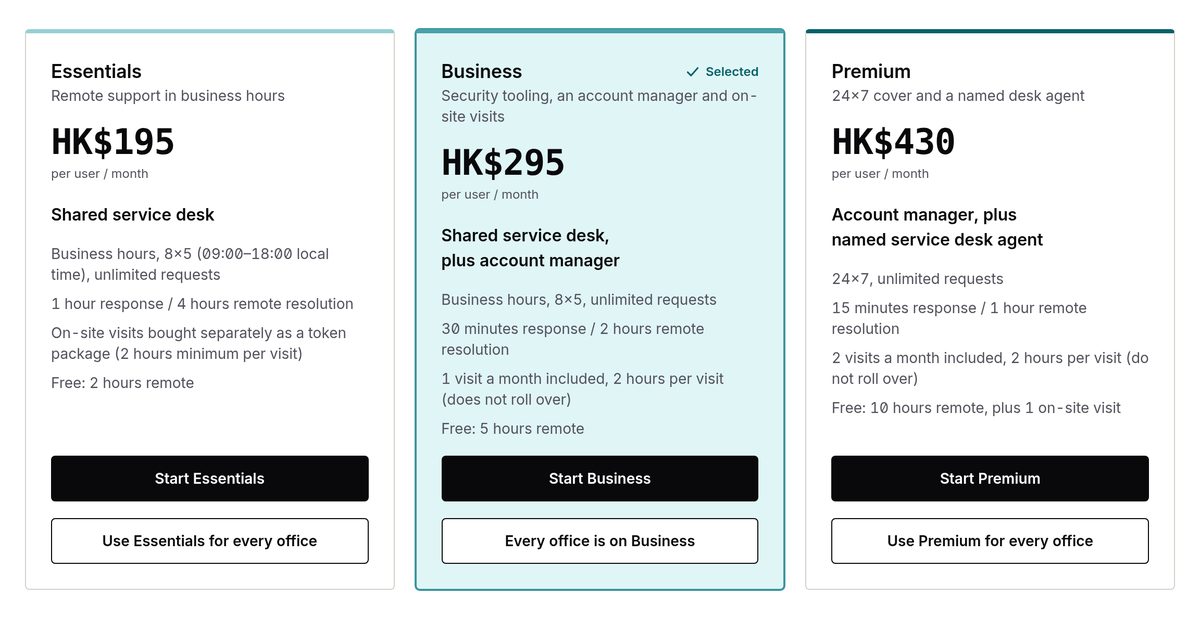
- On the service-level card, click “Start …” (for example “Start Essentials”) to open the customer portal.
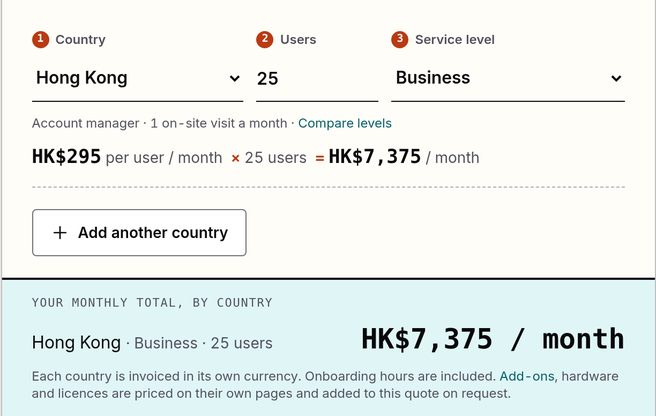
- 1Country
- 2Users
- 3Service level
- 4Monthly estimate in local currency
- 5“Start …” button opens the portal
Sign up and verify your email
- Enter your work email and click “Send Verification Code”.
- Find the code in your inbox, enter it and click “Verify & Continue”.
- You can also continue with a Google or Microsoft account. WeChat sign-in is not available yet.
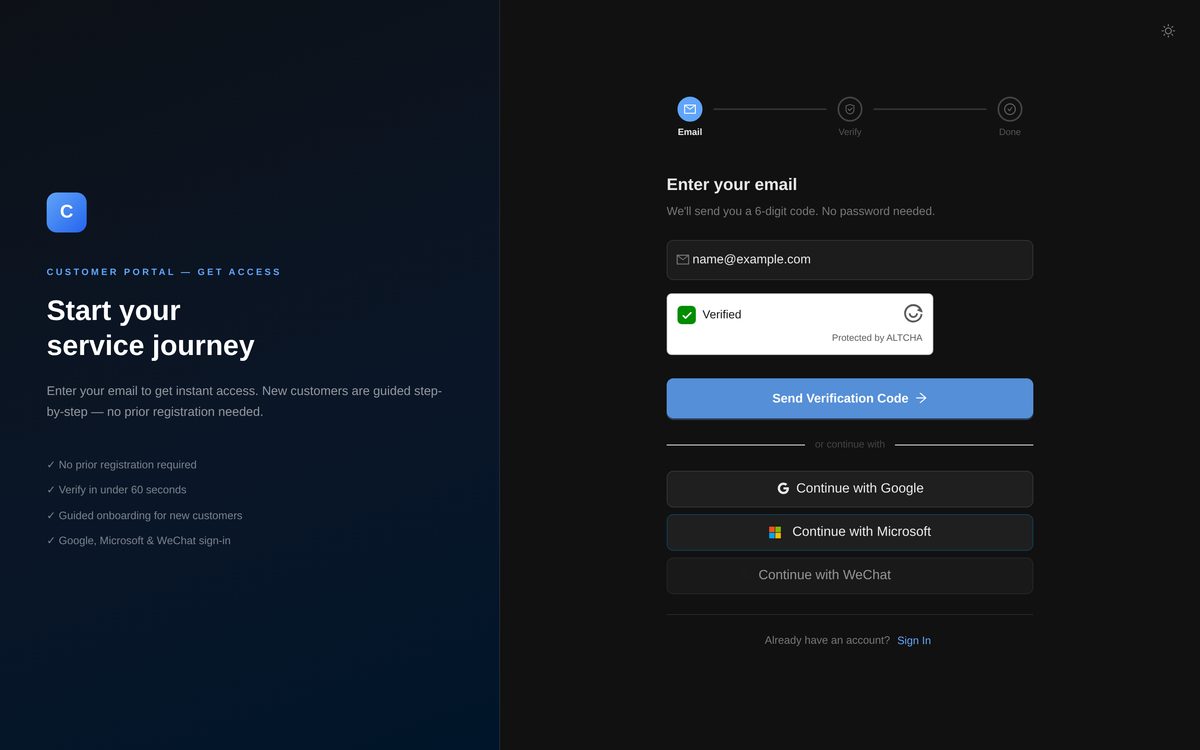
- 1Email
- 2Send Verification Code
- 3Continue with Google / Microsoft
- 4WeChat not yet available; greyed out in the portal
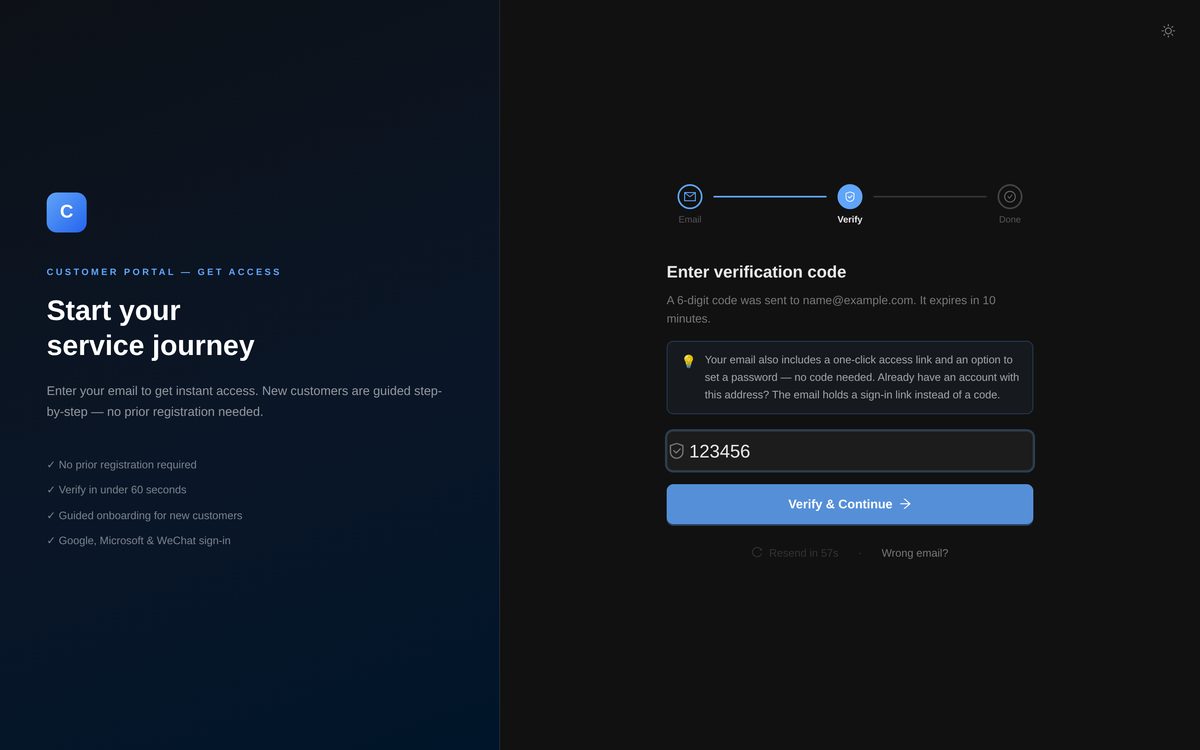
- 1Verification code
- 2Verify & Continue
- 3Resend available when the countdown ends
Enter your company details
- Fill in the company name, country/region, contact person, phone and company address.
- If your invoice must carry specific details, turn on “I need a tax invoice with specific details”.
- Check the order summary on the right and click “Continue”.
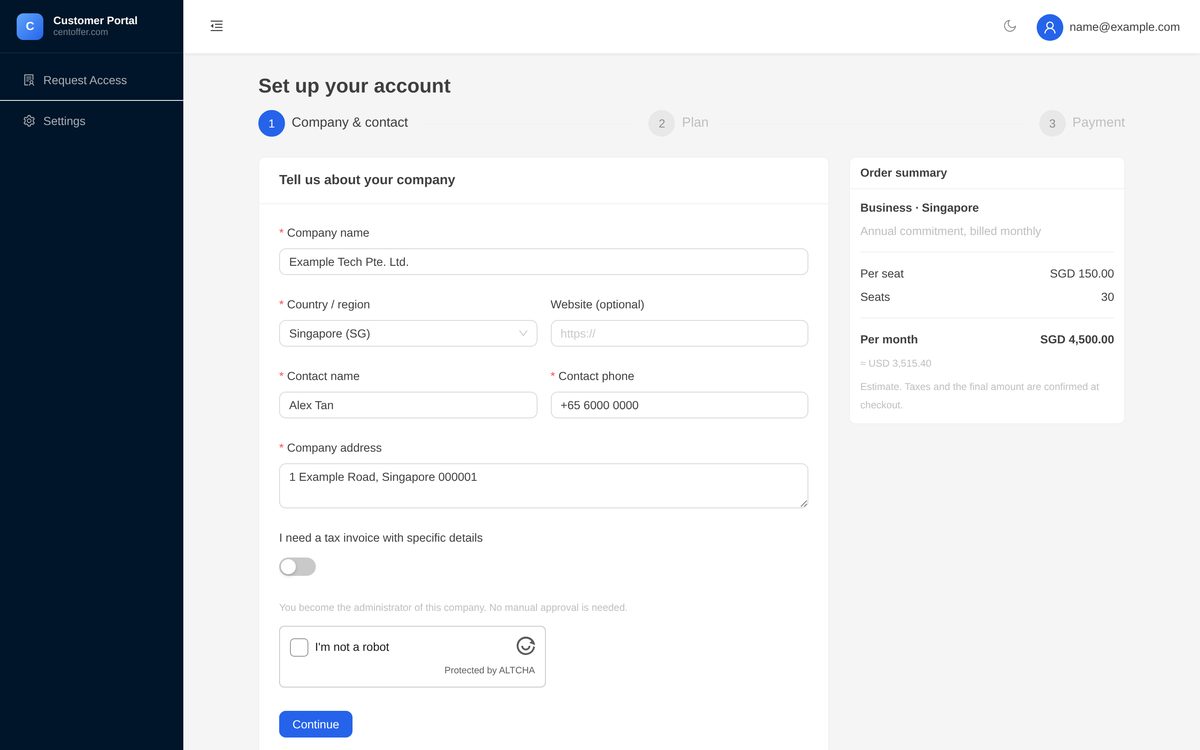
- 1Company name
- 2Country/region
- 3Specific invoice details switch
- 4Order summary the plan you chose on the website
Confirm the plan
- The country/region, service level and seats you chose on the website are already filled in.
- If needed, change the service level, number of seats and billing method here; the summary on the right updates.
- When everything is right, click “Next”.
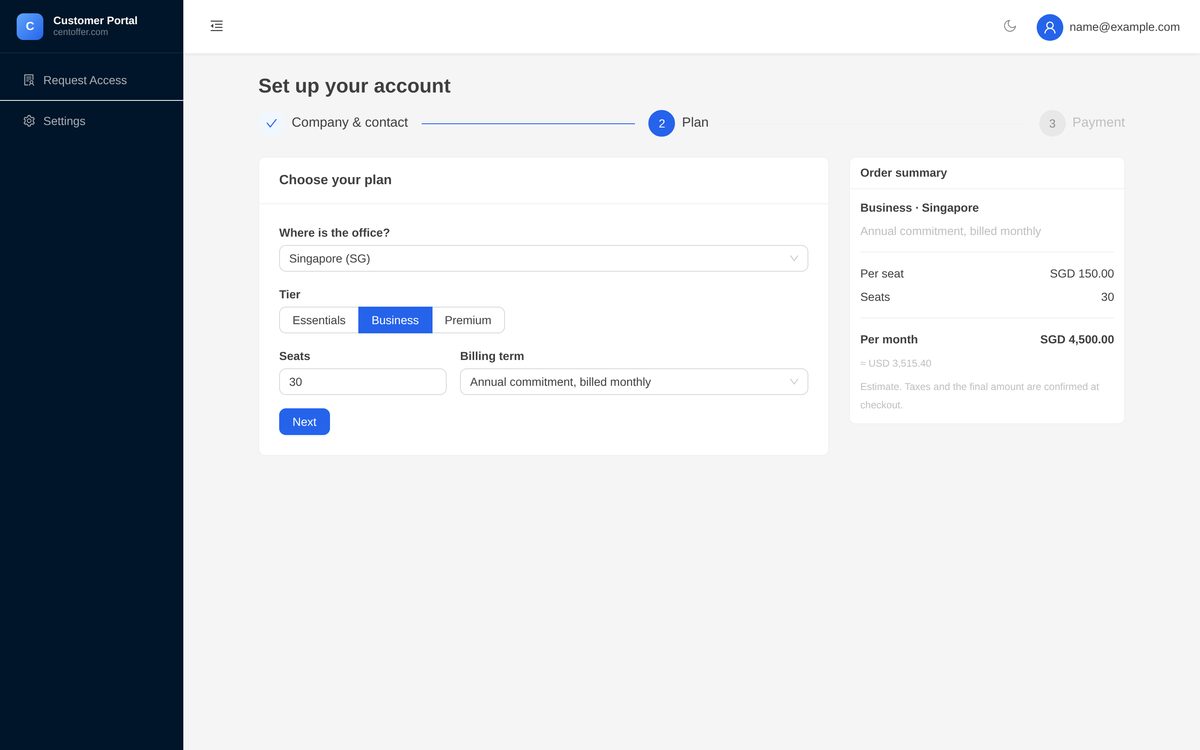
- 1Service level
- 2Seats
- 3Billing method
- 4Monthly total estimate
Choose a payment method
- Select “Pay by card” and click “Pay now” to open the checkout.
- Or click “Pay later” to save the order first.
- To pay by invoice, first click “Request invoice payment”; once approved it becomes available.
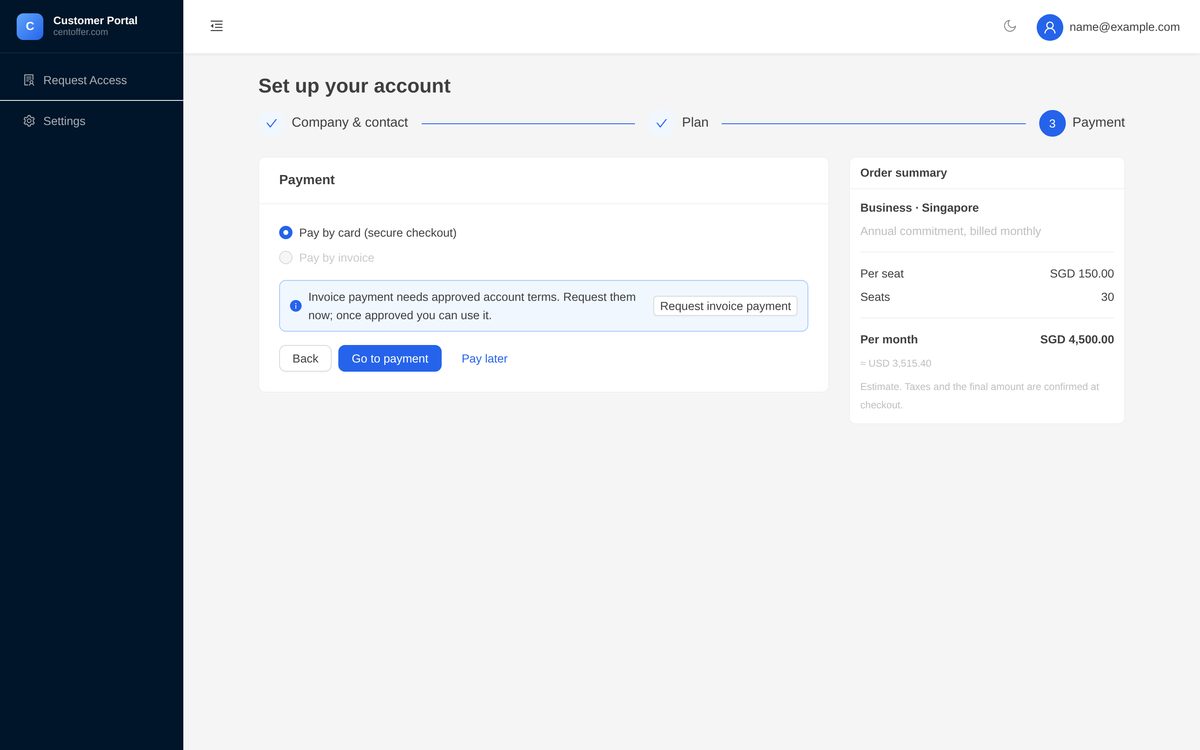
- 1Pay by card
- 2Request invoice payment
- 3Pay now
- 4Pay later
Open the portal and find your order
- When you see “You are all set”, the order is saved. Click “Enter the portal”.
- Your order is listed under “Recent activity” on the portal home page.
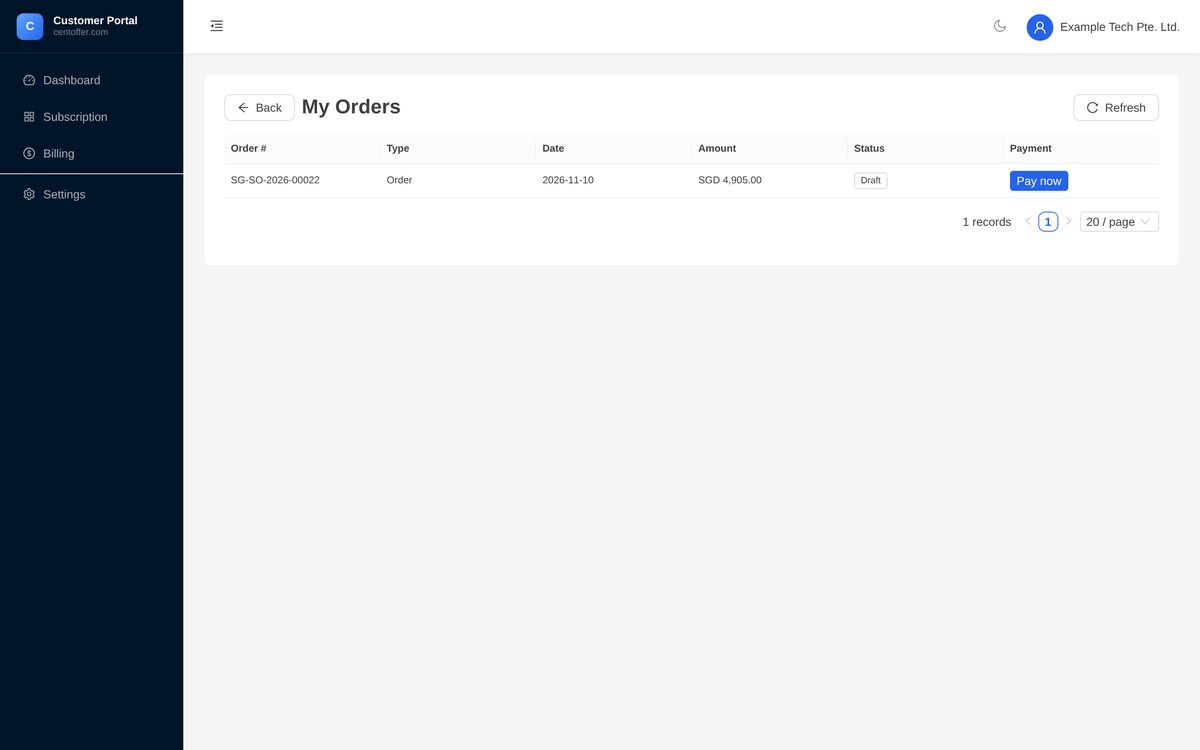
- Click the order number to open the order list. If it is unpaid, click “Pay now”.
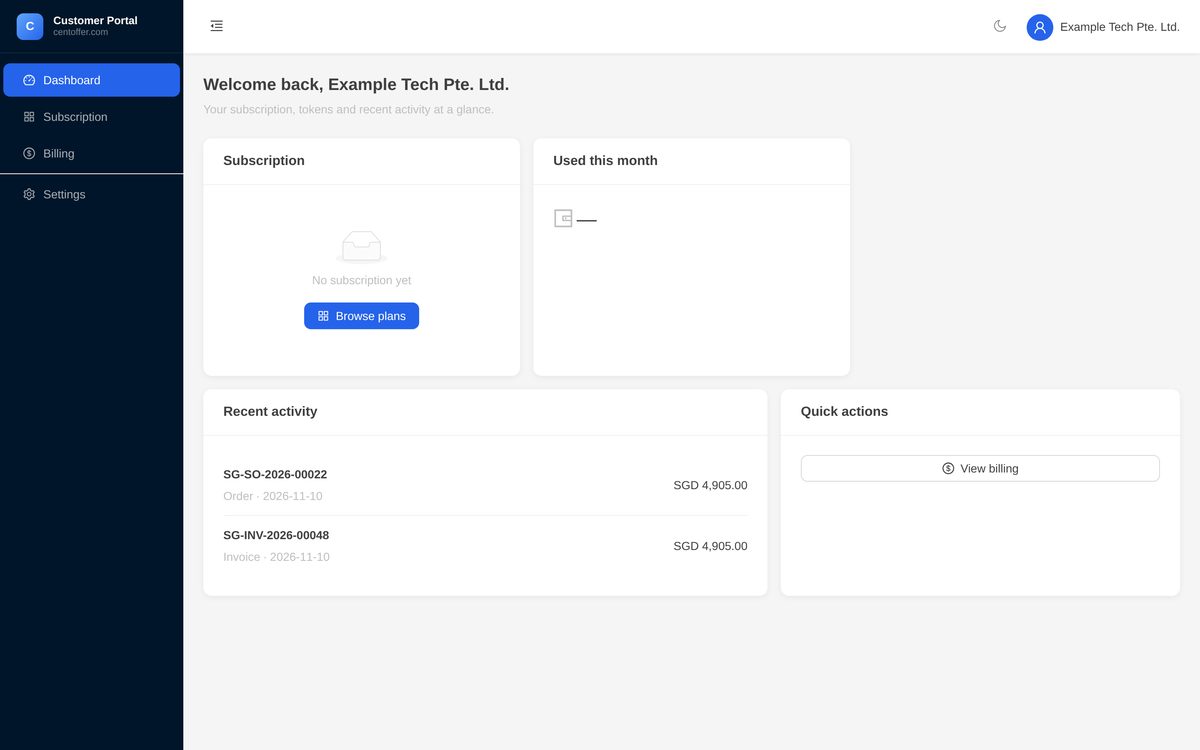
- 1Order under Recent activity
- 2View bill
- 3Billing menu the order entry follows the portal
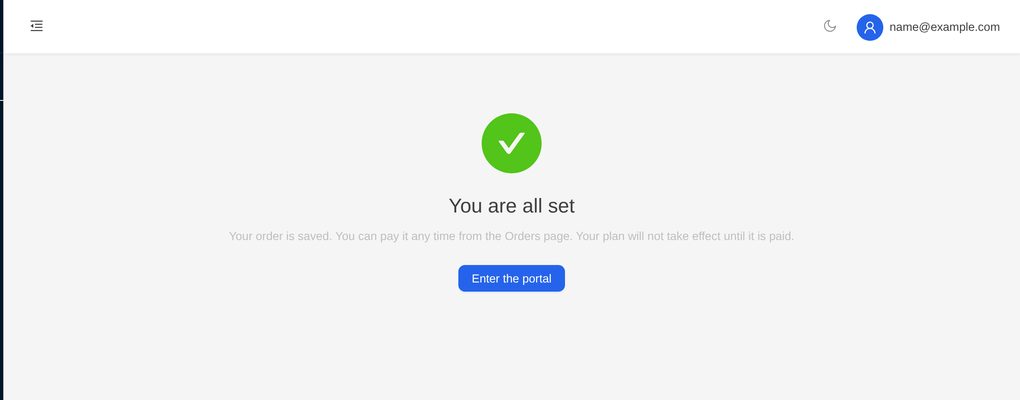
- 1You are all set
- 2Enter the portal
You’re done!
Your order is now in the portal. Paying it and viewing invoices are done there too.
- A portal account, and you are the company administrator
- One order, its status shown under My Orders
- The plan starts once it is paid
- 1Order number
- 2Status
- 3Pay now
Questions on this guide
Stuck? Look here first
What if I don’t receive the verification code?
Check your spam folder first. When the countdown ends, click “Resend”. If you typed the wrong email, click “Wrong email?” to go back and correct it. How long a code stays valid is set by the system.
I chose “Pay later”. Is my order still there?
Yes. The order is saved, and you can click “Pay now” under My Orders at any time. The plan does not start until it is paid.
Which entity issues the invoice?
It is determined by the system and shown on the order page. If the invoice must carry specific details, turn on the matching switch in step 3.
Something looks different from this guide?
Tell the service desk. We will walk you through it and update the guide.
 Scan to reach us on WeChat
or message us on WhatsApp