Rack and Stack Checklist: Delivery, Racking, Cabling, Labelling, Power-On and Handover
What rack and stack means, with a practical checklist for delivery checks, racking servers and switches, cabling, labelling, power-on and acceptance.

The short version: Rack and stack is the physical installation of IT equipment: receiving it, mounting it in a rack, cabling it for power and network, labelling it and powering it on, then handing it over for configuration. Do it from a written plan that shows each device's rack position, ports and power feed, and finish with a signed acceptance checklist. Most delays come from missing rails, wrong cables and unclear port plans, all of which a pre-delivery check catches.
This checklist is for IT managers, office engineers and anyone who has to install a server, switch, firewall or storage unit in a comms room or data centre rack. After reading it you can prepare the plan, run the install day in a fixed order, and prove it was done correctly.
What does rack and stack mean?
To rack is to mount equipment in a rack. To stack is to place or connect units one above another, such as switches in a stack or servers in a cabinet. In IT, "rack and stack" covers the whole physical installation job: unpacking, mounting, cabling, labelling and powering on. Configuration of the operating system or network settings comes afterwards and is usually a separate job.
Some facts that help planning. Racks are measured in rack units, written U. Wikipedia gives one rack unit as 1.75 inches (44.45 mm) of height, and notes that the "19-inch" rack standard describes the equipment width, with mounting holes about 18.3 inches (465 mm) apart centre to centre (checked 28 October 2026). A 2U server takes 3.5 inches of height.
Phase 1: Before the equipment arrives
Do these items one to two weeks before delivery.
- Write the rack plan. For every device: model, size in U, rack and U position, weight, power draw and number of power supplies. Top-to-bottom order is a design choice; a common habit is to put heavy items low.
- Check the room. Confirm floor space, access route for the delivery (lift size, door width, stairs), and a place to unpack.
- Check the rack. Enough empty U space in the right position, rack depth against the server depth, rack load rating against the total weight, and the type of mounting holes (square, round or threaded).
- Check rails. Each server or switch needs the right rail kit for that rack type. Confirm they ship with the device or order them.
- Check power. Number of outlets on the PDUs, outlet type (for example C13 or C19), PDU capacity, the circuit rating, and the UPS load after the new devices are added. If devices have two power supplies, plan to feed them from two separate PDUs.
- Check cooling and airflow. Know the direction of airflow of each device and keep it consistent, front to back in most data centre equipment. Use blanking panels in empty U spaces.
- Check network ports. Plan which switch port connects to which device port, the VLAN and the cable length. Check there are enough unused switch ports, with the right speed and media (copper or fibre).
- Prepare cables and parts. Network patch cables (right length, colour code), power cords, fibre jumpers, transceivers, cable ties or hook-and-loop straps, cage nuts, screws, labels.
- Prepare documents. The rack plan, a port map, the power map, the purchase order, and the expected IP and hostname for each device.
- Book the people and the access. Building access, loading dock times, and who signs for the delivery. Two people are needed to lift heavy servers.
Phase 2: Delivery and receiving checks
- Check the packaging before signing: crushed boxes, water marks, tamper seals. Note any damage on the delivery note.
- Count boxes against the delivery note and the purchase order.
- Open and compare contents with the order: model, quantity, rail kits, power cords, accessories, transceivers.
- Record serial numbers and asset tags for every device and note the box they came in.
- Inspect for damage: bent rack ears, loose parts, dents.
- Keep the packaging until power-on tests pass, in case the device must be returned.
- Photograph the unboxed items and any damage.
Phase 3: Racking
- Lay out tools: screwdrivers, cage nut tool, torque tool if the vendor requires it, anti-static strap, a lifting aid, cable ties.
- Install rails first. Fit cage nuts in the correct holes, install the rails level at the planned U position, and check that both sides line up.
- Lift with two people for servers and storage. Use a server lift for heavy units.
- Install heaviest equipment at the bottom first, unless the plan says otherwise. This keeps the rack stable. If the rack has stabilising feet, make sure they are out.
- Slide the device onto the rails until the latches click, then fasten the front ears with screws.
- Check clearance: the door closes, cable arms move, and nothing blocks the airflow at the back.
- Fill gaps with blanking panels between devices.
- Check the position against the plan and update the plan if you had to change it.
Phase 4: Cabling
Cable power first, then network, then any console and management cables.
- Power: connect each power supply to the planned PDU outlet. For dual power supplies, connect each to a different PDU, ideally on different circuits. Use locking cords or clips where the PDU supports them.
- Network: connect the data cables from the port map. Keep copper and power cables apart where you can, and use the shortest cable that is not tight.
- Management: connect the out-of-band management port (iLO, iDRAC or similar) to the management network.
- Cable routing: use the vertical managers and the cable arms. Leave a service loop so a device can be slid out without pulling cables. Do not bend fibre tighter than the minimum bend radius the vendor gives.
- Strapping: use hook-and-loop straps rather than tight cable ties, which can damage cables.
- Fibre: clean connectors before use, keep dust caps on unused ports, and check transmit and receive are correct.
- Console: connect a console cable only if the plan says so.
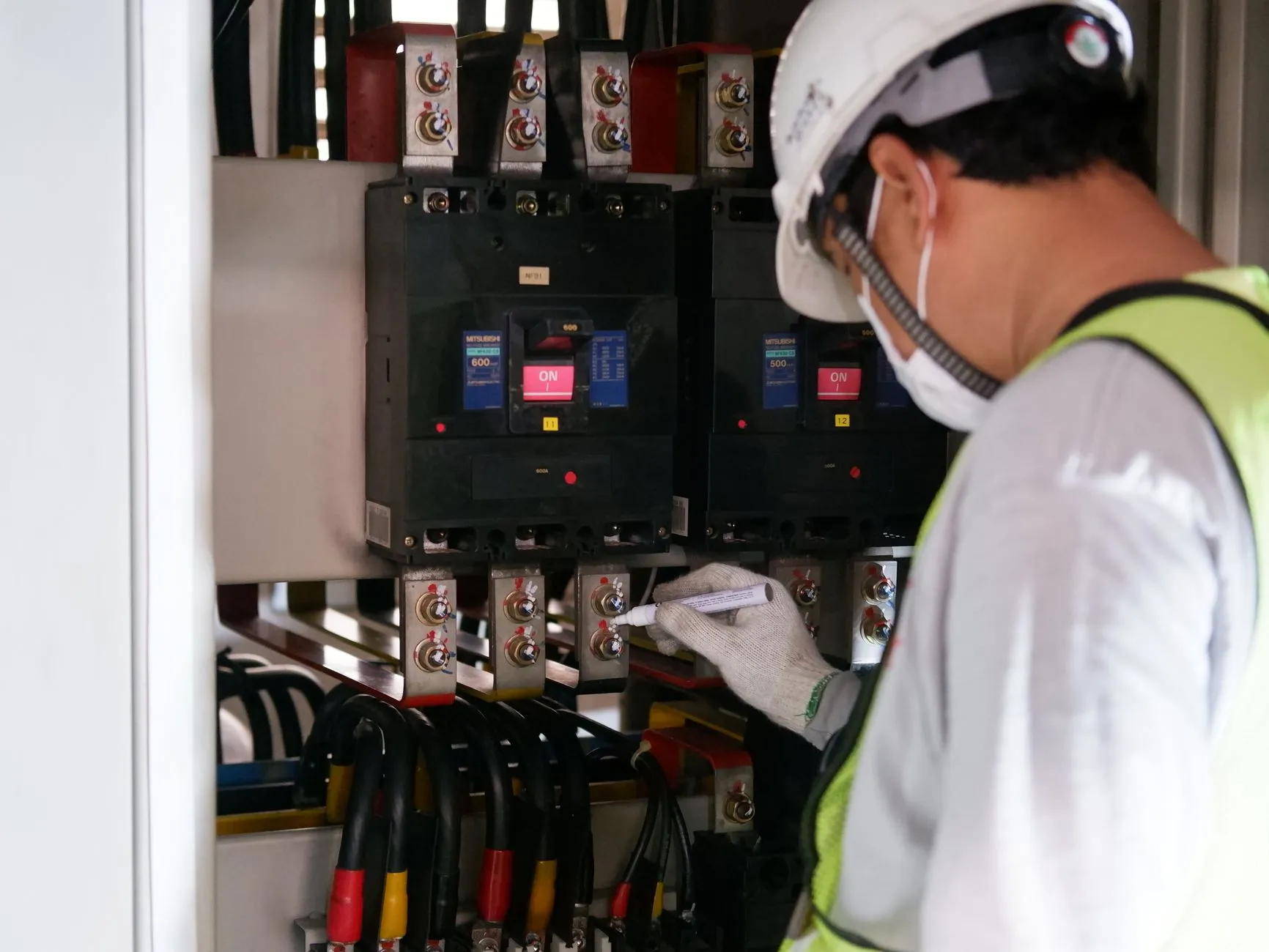
Phase 5: Labelling
Label as you cable, not afterwards.
- Device labels on front and back: hostname, asset tag, rack and U position.
- Cable labels on both ends of every cable: a code that links to the port map, such as the source device and port, and the destination device and port.
- Power cord labels at the PDU end showing which device and which supply.
- Rack and PDU labels: rack ID on the door, PDU ID and circuit on the PDU.
- Patch panel ports: label what each port serves.
- Use labels that last: printed, not handwritten, and suited to the environment.
- Update the documentation with what is actually installed. Our network documentation template shows what to record.
Phase 6: Power-on and first checks
- Check cabling against the port map before powering on.
- Power on in a sensible order: network and storage first, then servers.
- Watch the start-up: fans spin, no amber or red lights, no alarms on the front panel or management controller.
- Log in to the management controller and check its hardware inventory against the order: CPU, memory, disks, power supplies, network cards.
- Check firmware and health status and record the version. Plan upgrades with the firmware upgrade checklist.
- Test the links: link lights and speed negotiated correctly; ping the management IP.
- Test redundancy: unplug one power feed at a time and confirm the device stays up, then restore it.
- Check temperatures after the first hour.
Phase 7: Acceptance and handover
Ask the receiving person to sign off against this list.
- Every device is at the planned rack and U position, or the change is recorded.
- Rails are locked, and ears are screwed in.
- All power supplies are connected to the planned PDUs, with the redundancy test passed.
- Every cable matches the port map and is labelled at both ends.
- Device, cable and rack labels are in place and readable.
- Serial numbers and asset tags are recorded in the inventory.
- No fault indicator is lit, and the management controller shows healthy hardware.
- Waste and packaging are removed, and the area is clean.
- Photos of the finished rack front and back are stored with the documentation.
- The rack plan, port map and power map are updated and given to the team that will configure the devices.
If you do not have staff on site for racking, a field engineer can do the install from your plan. See our field IT dispatch service, and our on-site vs remote support guide for which tasks need a visit.
Common mistakes
- No rail kit or wrong rails. Check compatibility before delivery.
- Top-heavy racks. Put heavy items low and extend stabilising feet.
- Both power supplies on the same PDU, which defeats the redundancy. Split them.
- Blocking airflow with cable bundles or missing blanking panels.
- Labelling afterwards, or not at all. Unlabelled cables take hours to trace later.
- Cables pulled tight, so the device cannot slide out for service.
- No power-on checks before handover, so faults surface weeks later.
- Updating no one. The rack plan must reflect what was installed.
How to check it worked
- The acceptance list is signed with no open items.
- The device appears in monitoring and answers on its management IP.
- A person who did not install it can find any cable's other end using only the labels and the port map.
- The redundancy test showed no loss of service when one power feed was removed.
- The inventory and rack plan match the physical rack on a spot check.
FAQ
What does it mean to rack and stack IT equipment?
It means physically installing equipment: unpacking it, mounting it in a rack, connecting power and network cables, labelling it and powering it on, ready for configuration.
What is the difference between a rack and a stack?
A rack is the frame or cabinet that holds equipment. A stack, in networking, usually means several switches joined to work as one unit. In everyday talk "stack" in "rack and stack" refers to placing equipment in the rack.
What does "stack" mean?
In networking, a stack is usually several switches joined so they act as one device. In "rack and stack" it refers to placing units in the rack one above another.
What is a rack unit, or U?
A rack unit is a unit of vertical height in a rack, 1.75 inches (44.45 mm). A 1U device takes one unit and a 2U device takes two.
What are some rack and stack examples?
Installing a new server and its rails, mounting a switch and cabling its uplinks, fitting a firewall pair with redundant power, or moving existing equipment into a new cabinet during an office move.
Next step
If you need engineers on site to install equipment from your plan, see our field IT dispatch service.
Sources checked 28 October 2026: Wikipedia, "Rack unit" (en.wikipedia.org/wiki/Rack_unit).
Share:
Ready to take action?
Turn these insights into a roadmap for your business.
Book a 15-minute no-obligation consultation with our APAC IT experts. We'll review your current setup and provide a tailored IT roadmap within 24 hours.
Related services
Free Checklist
10 Critical Checks Before Expanding IT to Greater China
PIPL compliance, network segmentation, bilingual helpdesk setup, and more — everything your IT team needs before Day 1 in China.
Request the checklist →📬 Monthly Asia IT Insights
China compliance updates, cybersecurity alerts, and IT tips for APAC teams — once a month.
No spam. Unsubscribe anytime.
Related Articles

Oct 30, 2026
Network Firmware Upgrade Checklist: Switches, Firewalls and Access Points, Step by Step

Oct 30, 2026
Network Mapping and Documentation Template: Topology, IP Table, VLANs and Device Inventory
Oct 30, 2026
Preventive IT Maintenance Checklist: What to Do Monthly, Quarterly and Yearly